Warehouses & Containers
Organize your physical inventory across multiple locations using Warehouses and Containers.
Warehouses
A warehouse represents a physical storage location — a building, room, shelf area, or any place where items are stored.
Managing Warehouses
Navigate to Inventory → Warehouses to view and manage your warehouses.
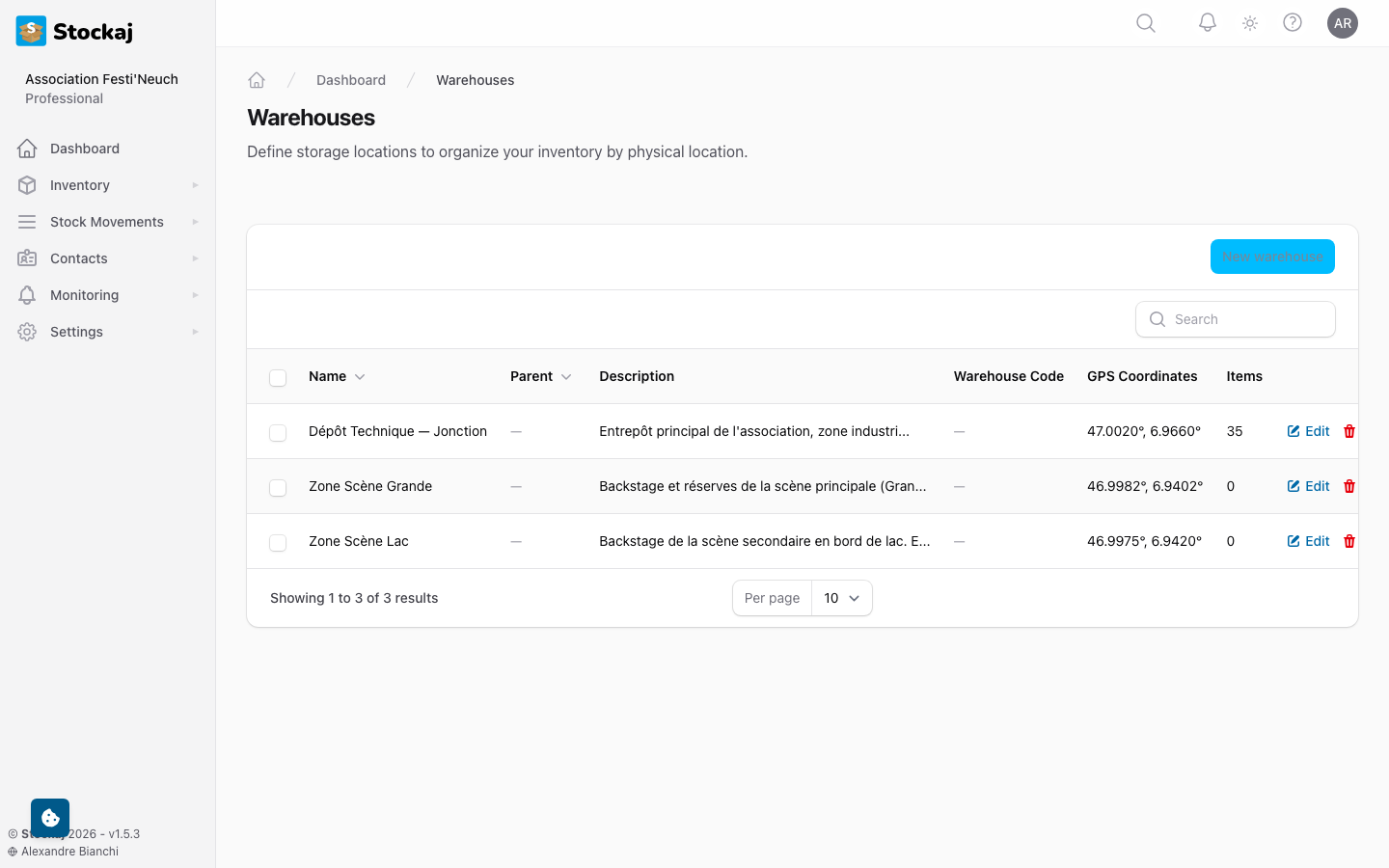
Creating a Warehouse
- Click + New Warehouse.
- Enter the warehouse name (e.g., "Main Storage", "Building B — Room 3").
- Click Create.
Assigning Items to Warehouses
You can assign items and variants to warehouses:
- When creating or editing an item, select a warehouse
- When creating or editing a variant, select a warehouse
This helps you track where each item is physically located.
Containers
Containers provide an additional level of organization within your inventory. A container can represent a box, crate, shelf, or any physical grouping.
Managing Containers
Navigate to Inventory → Containers to view and manage containers.
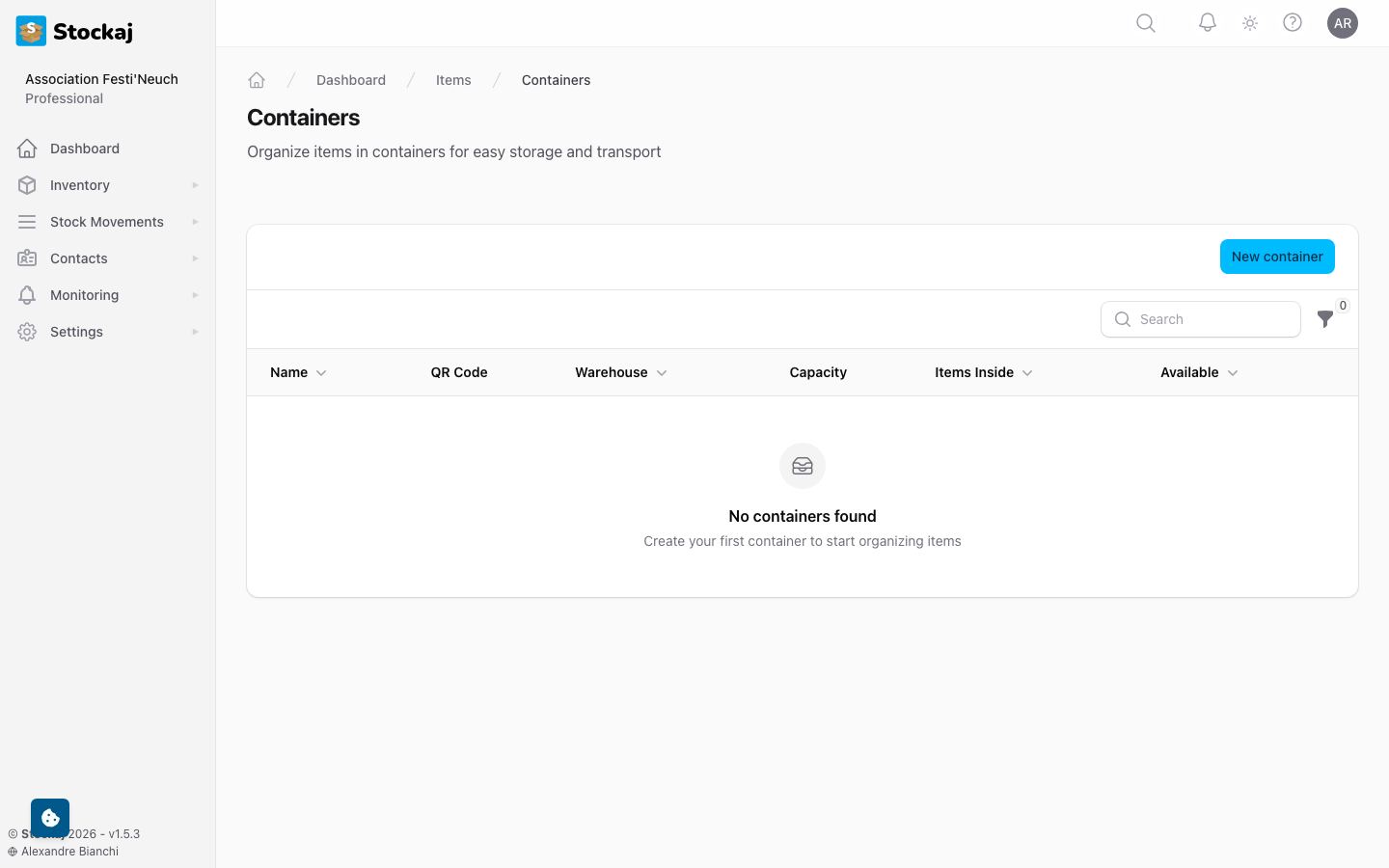
Container Features
- Hierarchical — Containers can be nested (a container within a container)
- Capacity — Set maximum capacity for a container
- Item Assignment — Assign items to containers for organization
Use containers when you need more granular location tracking than warehouses alone — for example, tracking which items are in which box on which shelf.