Team Management
Invite team members to your workspace and manage their access with roles and permissions.
Inviting Team Members
- Go to Settings → Users & Roles.
- Click Invite User.
- Enter the user's email address.
- Select a role for the new member.
- Click Send Invitation.
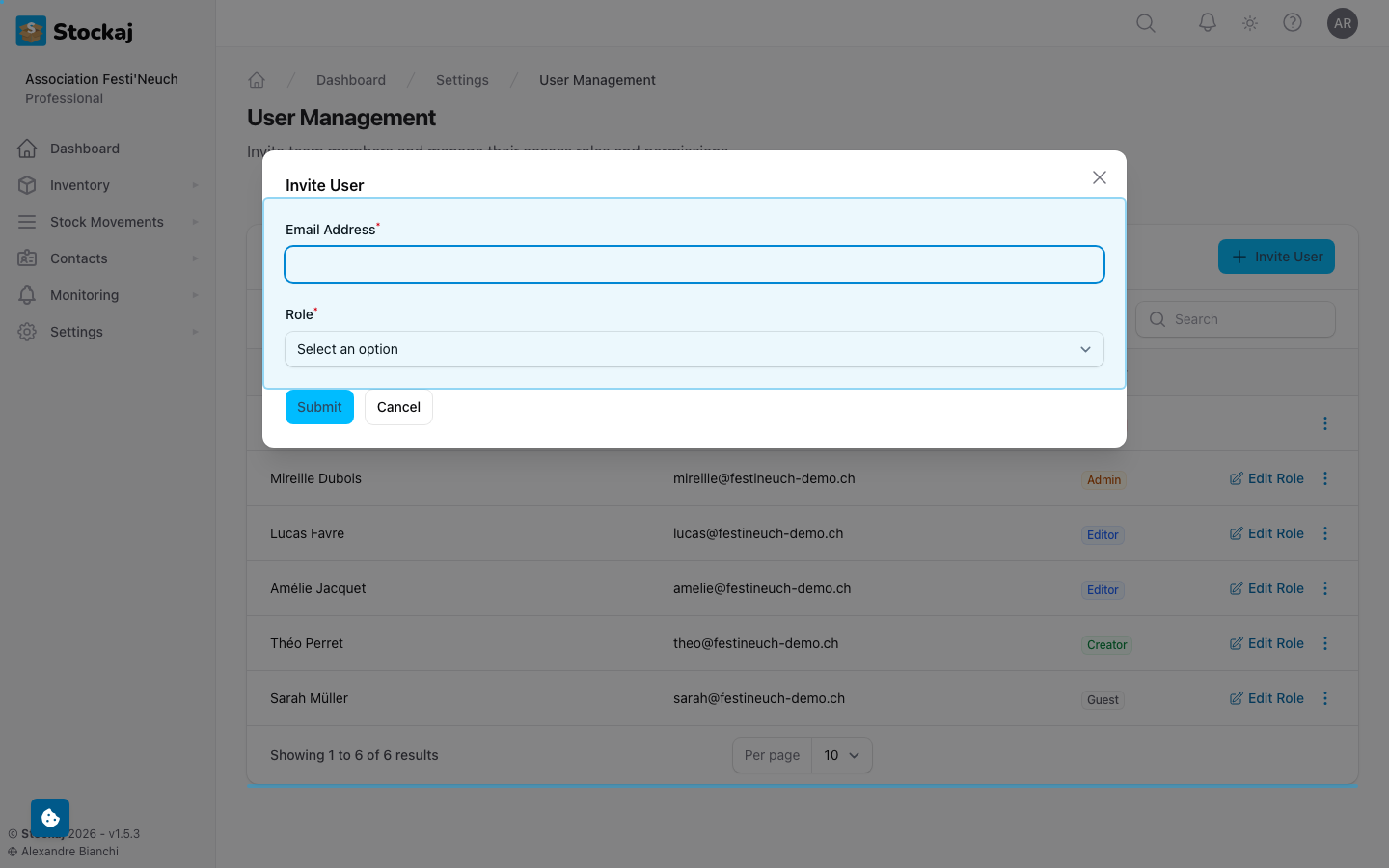
The invited user receives an email with a link to join your workspace. If they don't have a Stockaj account yet, they'll be prompted to create one.
Resending Invitations
If an invitation hasn't been accepted, you can resend the invitation email from the user management page.
Removing Team Members
To remove a user from your workspace:
- Go to Settings → Users & Roles.
- Find the user.
- Click Remove.
The user loses access to the workspace but their account remains active. They can still access other workspaces they belong to.
User Limits by Plan
| Plan | Max Users |
|---|---|
| Free | 1 |
| Starter | 5 |
| Professional | 20 |
| Enterprise | Unlimited |