QR Codes & Scanning
Stockaj generates unique QR codes for every item and variant, enabling rapid identification and check-in/check-out workflows.
QR Code Format
Stockaj QR codes use a proprietary format:
STK:1:i:<uuid>    — for Items
STK:1:v:<uuid>    — for Variants (serial numbers)
STK:1:c:<uuid>    — for Renters (contacts)
This format ensures codes are unique and can be instantly recognized by the Stockaj scanner.
Renter QR Codes
Every renter in your contacts also has a unique QR code, available from their renter profile. Scanning a renter code in the kiosk or scanner will bring up that renter's profile and their active rentals — making check-out and check-in faster when you identify by person rather than by item.
To access a renter's QR code:
- Go to Contacts → Renters and open any renter profile.
- The QR Code section of their profile shows their unique code.
- Download or print it to attach to a membership card, folder, or badge.
Generating QR Codes
Single Item QR Code
Every item and variant automatically has a QR code visible on its dashboard page. You can download or print it directly.
Bulk QR Generation
To generate QR codes for multiple items at once:
- Go to Inventory → Items.
- Select the items you want QR codes for.
- Click Bulk QR or navigate to the QR Codes → Bulk Generate page.
- Configure your label layout.
- Download or print the QR code sheet.
Label Printing
Stockaj includes a built-in Label Printer that generates professional labels with QR codes.
Using the Label Printer
- Navigate to Labels → Print or select items and choose Print Labels.
- Select a Label Template (or use the default).
- Preview the labels.
- Print directly or download as PDF.
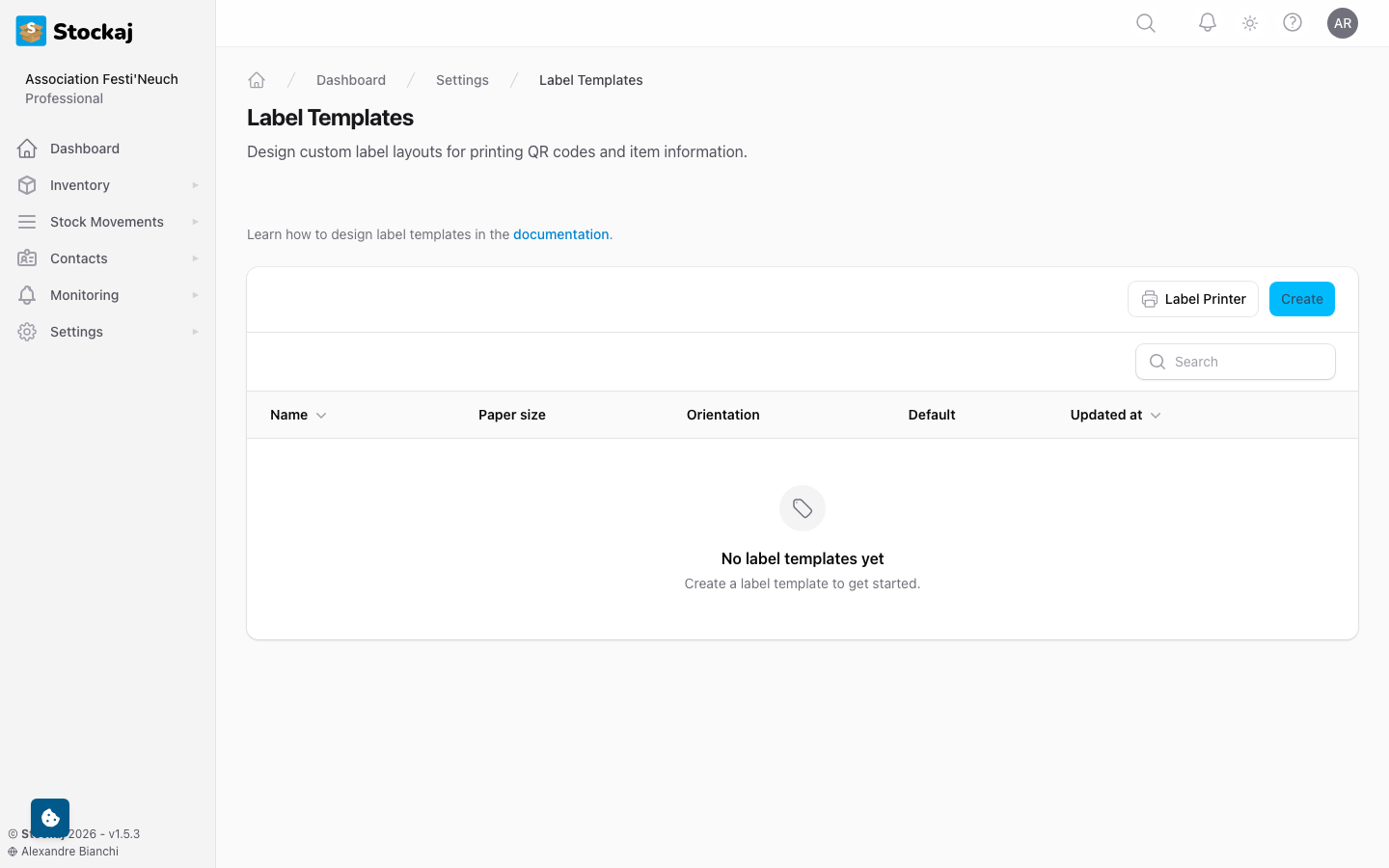
Label Templates
You can create custom label templates under Settings → Label Templates:
- Define label size and layout
- Choose which fields to display (name, code, category, etc.)
- Include your organization's branding
- Set up templates for different label printers
QR Scanner
The built-in scanner turns any device with a camera into a scanning station.
Using the Scanner
- Navigate to Scanner from the sidebar or go to
/scanner. - Point your camera at a Stockaj QR code.
- The scanner instantly identifies the item or variant and shows:
- Item details (name, category, quantity)
- Current rental status
- Renter information (if on rent)
Kiosk Mode
For dedicated scanning stations (e.g., at a warehouse entrance), use the Kiosk page (/kiosk):
- Optimized for continuous scanning
- Large, clear display of scan results
- Designed for tablet or desktop use
- Configurable button styles
The scanner also accepts regular barcodes and custom codes — not just Stockaj QR codes. If an item has a barcode in its Code field, scanning that barcode will find the item.
Scanning via the API
For custom integrations, you can use the Kiosk API endpoints to scan codes programmatically.