Alerts & Alert Rules
Stay on top of your inventory and rentals with automated alerts. Stockaj can notify you when items are overdue, stock is running low, or return dates are approaching.
Viewing Alerts
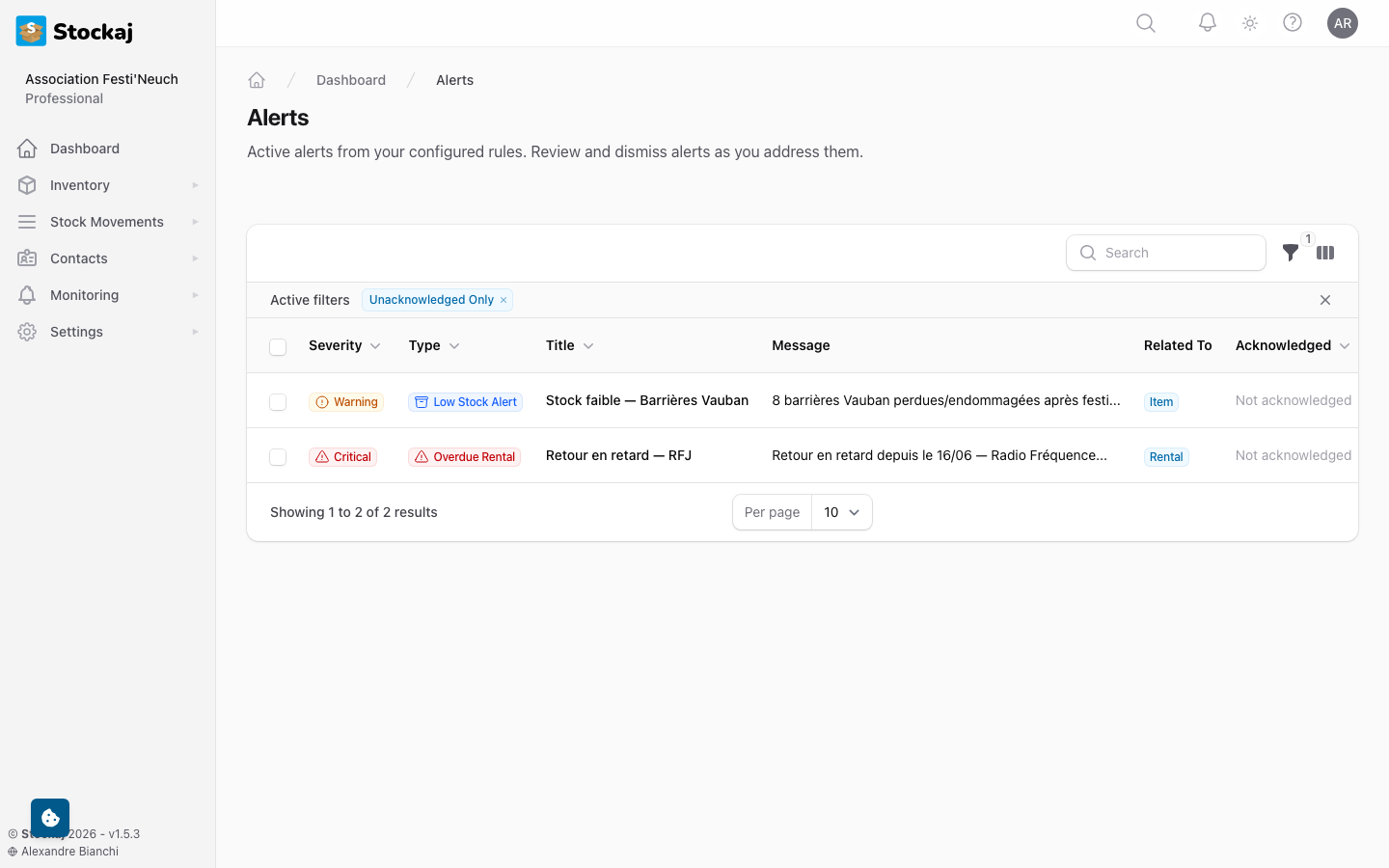
Navigate to Monitoring → Alerts to see all active alerts for your workspace.
Alert Types
| Type | Icon | Description |
|---|---|---|
| Overdue | ⚠️ | A rental has passed its expected return date |
| Return Reminder | 🕐 | A rental is approaching its return date |
| Low Stock | 📦 | An item's quantity has dropped below its minimum threshold |
| Custom | 🔔 | A custom alert triggered by an alert rule |
Alert Severities
| Severity | Color | Use Case |
|---|---|---|
| Info | Blue | Informational, no action needed yet |
| Warning | Yellow | Action recommended soon |
| Critical | Red | Immediate attention required |
Acknowledging Alerts
Click on an alert to acknowledge it. Acknowledged alerts are marked as read and won't appear in your notification count.
Alert Rules
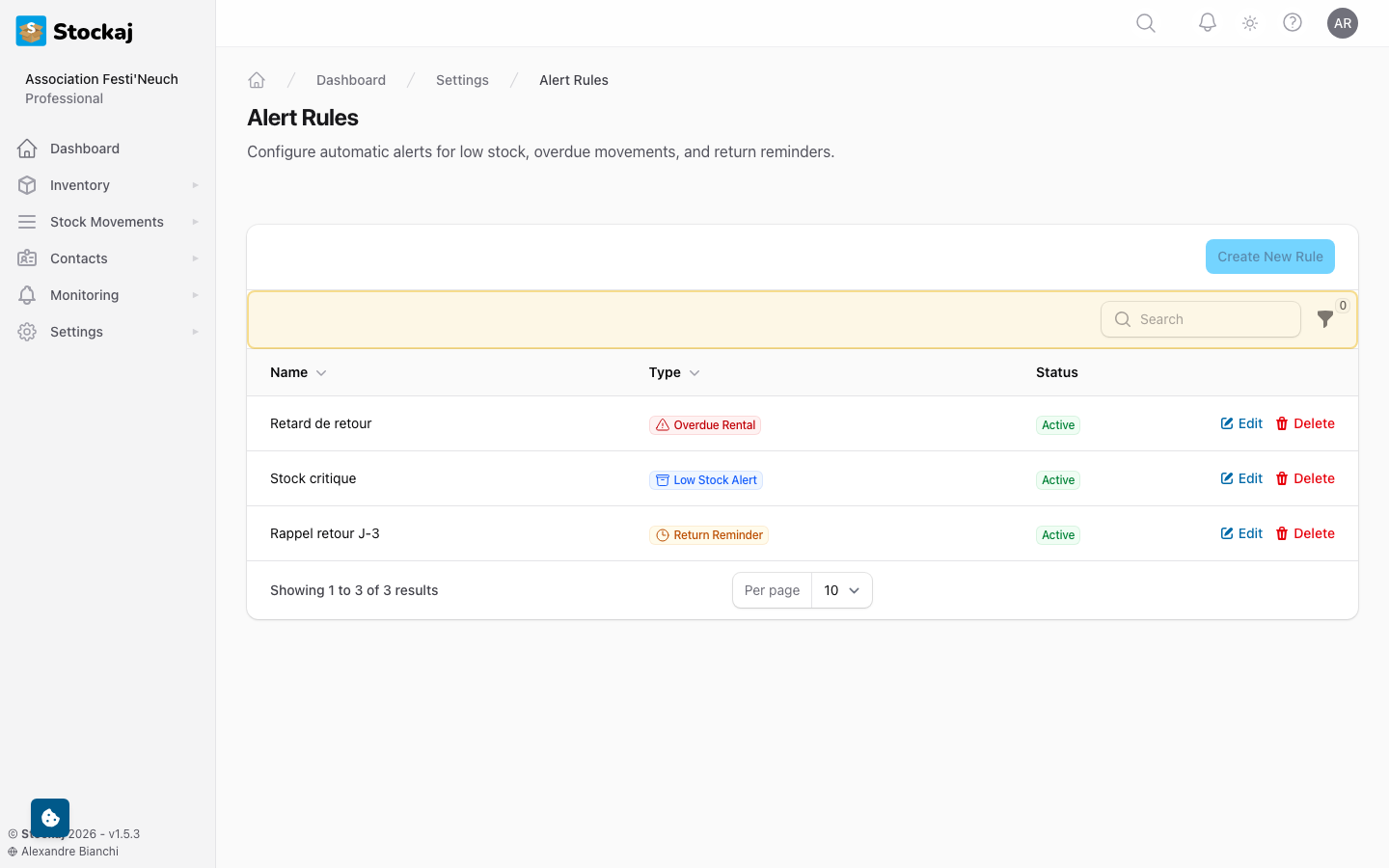
Alert rules define when and how alerts are generated. Manage them under Settings → Alert Rules.
Creating an Alert Rule
- Go to Settings → Alert Rules.
- Click + New Rule.
- Configure:
- Type — What to monitor (overdue rentals, low stock, etc.)
- Conditions — When to trigger (e.g., "X days before return date")
- Severity — How urgent the alert is
- Notifications — Whether to send email/in-app notifications
- Click Create.
Low Stock Alerts
To get alerted when an item is running low:
- Set a Minimum Quantity on the item (in the item editor).
- Enable Low Stock Alert for that item.
- When the quantity drops below the minimum, an alert is generated.
You can see the low stock count directly in the sidebar navigation badge under Inventory.
Notification Settings
Control how you receive alerts:
In-App Notifications
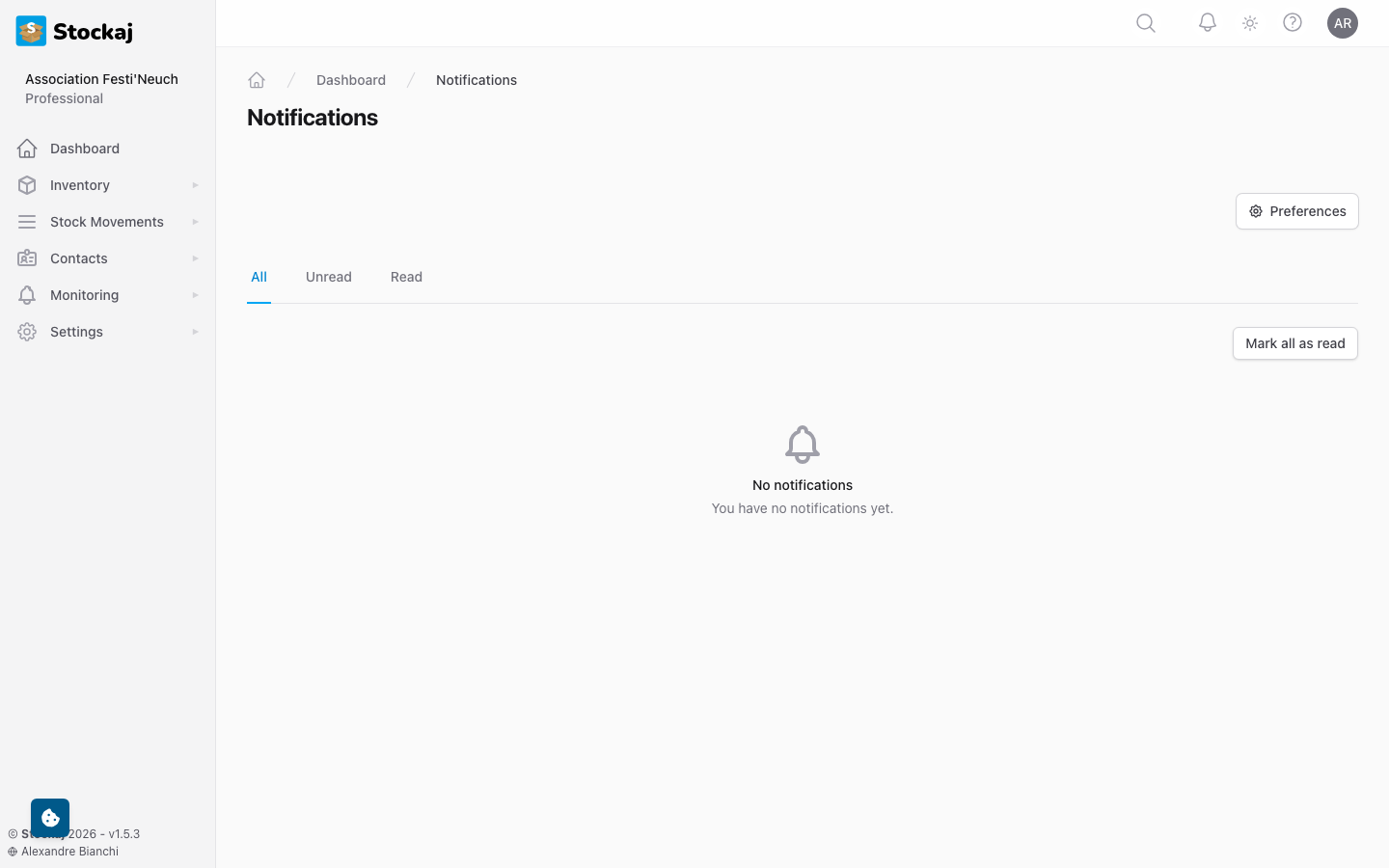
The notification bell in the top navigation shows unread notification count. Click it to see recent notifications.
Email Notifications
Configure email notification preferences under Profile → Notification Preferences:
- Choose which alert types send emails
- Set notification frequency (immediate, daily digest, weekly digest)
Workspace-Level Settings
Workspace owners can configure global alert settings:
- Go to Settings → General.
- Scroll to the Alert Settings section.
- Configure default notification behaviors for the workspace.
Overdue Rental Indicators
Overdue rentals are highlighted throughout the application:
- Sidebar badge — Red count showing number of overdue rentals
- Rental list — Overdue rentals have a red status badge
- Dashboard — Overdue count displayed prominently