Account & Profile
Manage your personal account settings, security, and notification preferences.
Profile Settings
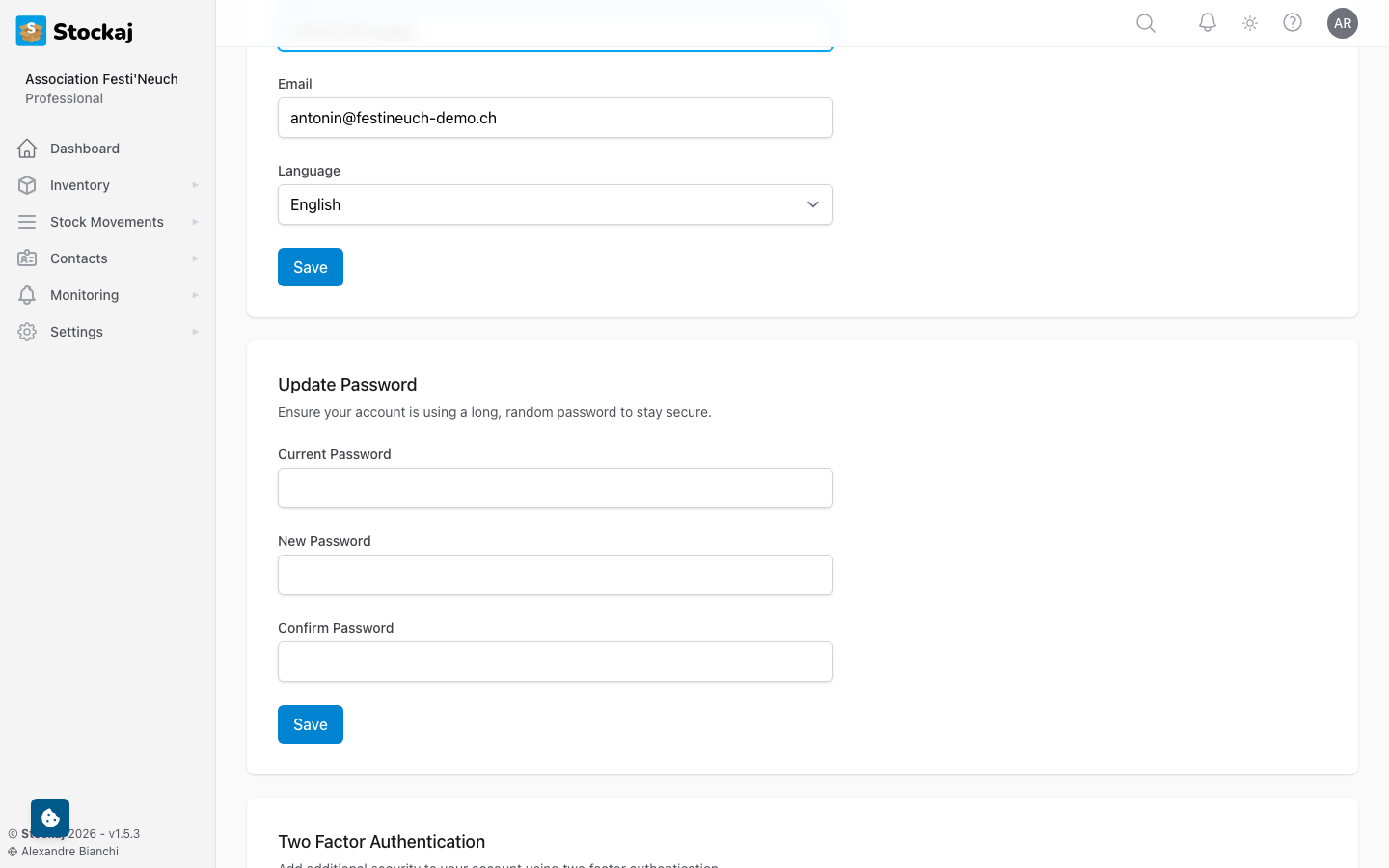
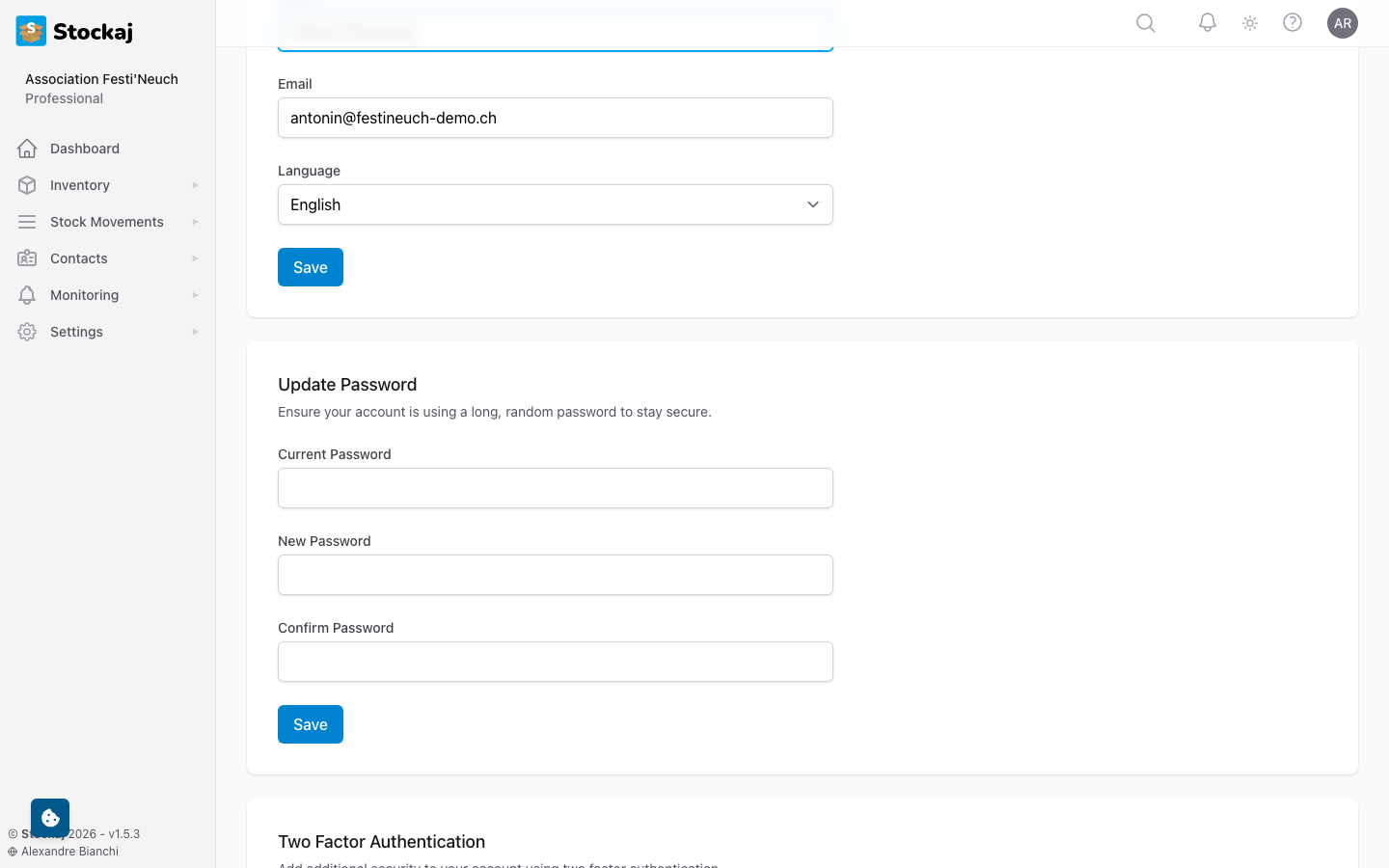
Navigate to your profile by clicking your avatar in the top-right corner and selecting Profile, or go to /profile.
Updating Your Profile
You can update:
- Name — Your display name
- Email — Your login email (requires verification)
Changing Your Password
Update your password from the profile page. You'll need to enter your current password for verification.
Two-Factor Authentication (2FA)
Add an extra layer of security to your account with two-factor authentication.
Enabling 2FA
- Go to your Profile page.
- Find the Two-Factor Authentication section.
- Click Enable.
- Scan the QR code with an authenticator app (e.g., Google Authenticator, Authy, 1Password).
- Enter the verification code from your app.
- Save your recovery codes — store them in a safe place.
Disabling 2FA
You can disable 2FA from the same section. You'll need to confirm your password.
Keep your recovery codes in a safe place. If you lose access to your authenticator app, recovery codes are the only way to regain access to your account.
Notification Preferences
Control how and when you receive notifications.
Navigate to Profile → Notification Preferences.
Notification Channels
- In-App — Notifications appear in the notification bell
- Email — Notifications are sent to your email
Notification Frequency
| Frequency | Description |
|---|---|
| Immediate | Notifications sent as they happen |
| Daily Digest | One summary email per day |
| Weekly Digest | One summary email per week |
Per-Type Settings
You can configure notifications independently for each alert type:
- Overdue rentals
- Return reminders
- Low stock alerts
- Custom alerts
Data Export (GDPR)
You can export all your personal data from Stockaj:
- Go to your Profile page.
- Click Export My Data.
- A JSON file containing all your personal data will be downloaded.
This export includes your profile information, activity history, and notification preferences.
Deleting Your Account
To delete your account:
- Go to your Profile page.
- Click Delete Account.
- Confirm your password.
Account deletion is permanent and cannot be undone. All your personal data will be removed. If you're the owner of any workspaces, you must transfer ownership or delete the workspace first.
Multiple Workspaces
You can belong to multiple workspaces. Switch between them by:
- Clicking the workspace name in the sidebar.
- Selecting a different workspace from the dropdown.
Leaving a Workspace
To leave a workspace you were invited to:
- Switch to that workspace.
- Go to your profile.
- Click Leave Workspace.
Workspace owners cannot leave their own workspace. Transfer ownership first or delete the workspace.