Workspace Settings
Configure your workspace's general settings, display preferences, and organizational details.
General Settings
Navigate to Settings → General to access workspace settings.
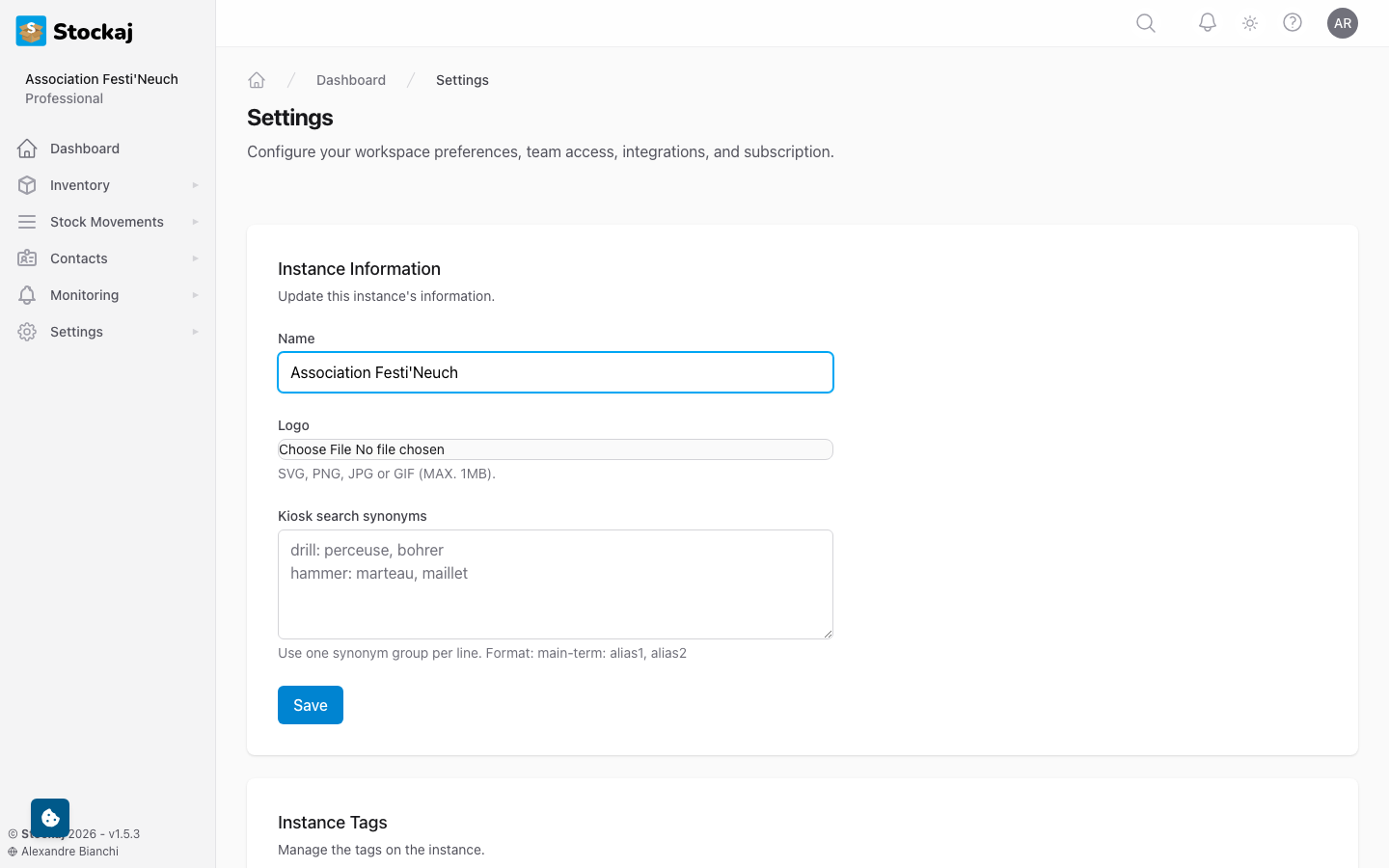
Workspace Name
Update your workspace name to reflect your organization or project.
Display Settings
Customize how information is displayed across the workspace:
- Date format preferences
- Currency and number formatting
- Default language
Menu Customization
Customize which navigation items appear in the sidebar. Hide sections your team doesn't use to keep the interface clean.
Alert Settings
Configure workspace-level alert behavior:
- Default notification preferences for new alerts
- Email notification settings
- Alert severity thresholds
Deleting a Workspace
danger
Deleting a workspace permanently removes all data, including items, rentals, renters, and all associated records. This action cannot be undone.
Only the workspace Owner can delete a workspace:
- Go to Settings → General.
- Scroll to the bottom.
- Click Delete Workspace and confirm.